TikTok Shop Chrome extension: see how fast any listing sells, on the page
The SoldCount Chrome extension puts the sold figure on the TikTok Shop page you are already looking at. No dashboard, no question to ask, read-only always.
Published · 8 min read
In this post7 sections
- What it shows
- How the counting works
- Five things to do with it
- 1. Check a rival before you copy them
- 2. Build your comparison by browsing
- 3. Watch a listing in one press
- 4. Keep everything in the side panel
- 5. Tell it when it got a match wrong
- Alerts: what earns one, and where it arrives
- What it stores, and what it does not
- Get it
- Questions
In short
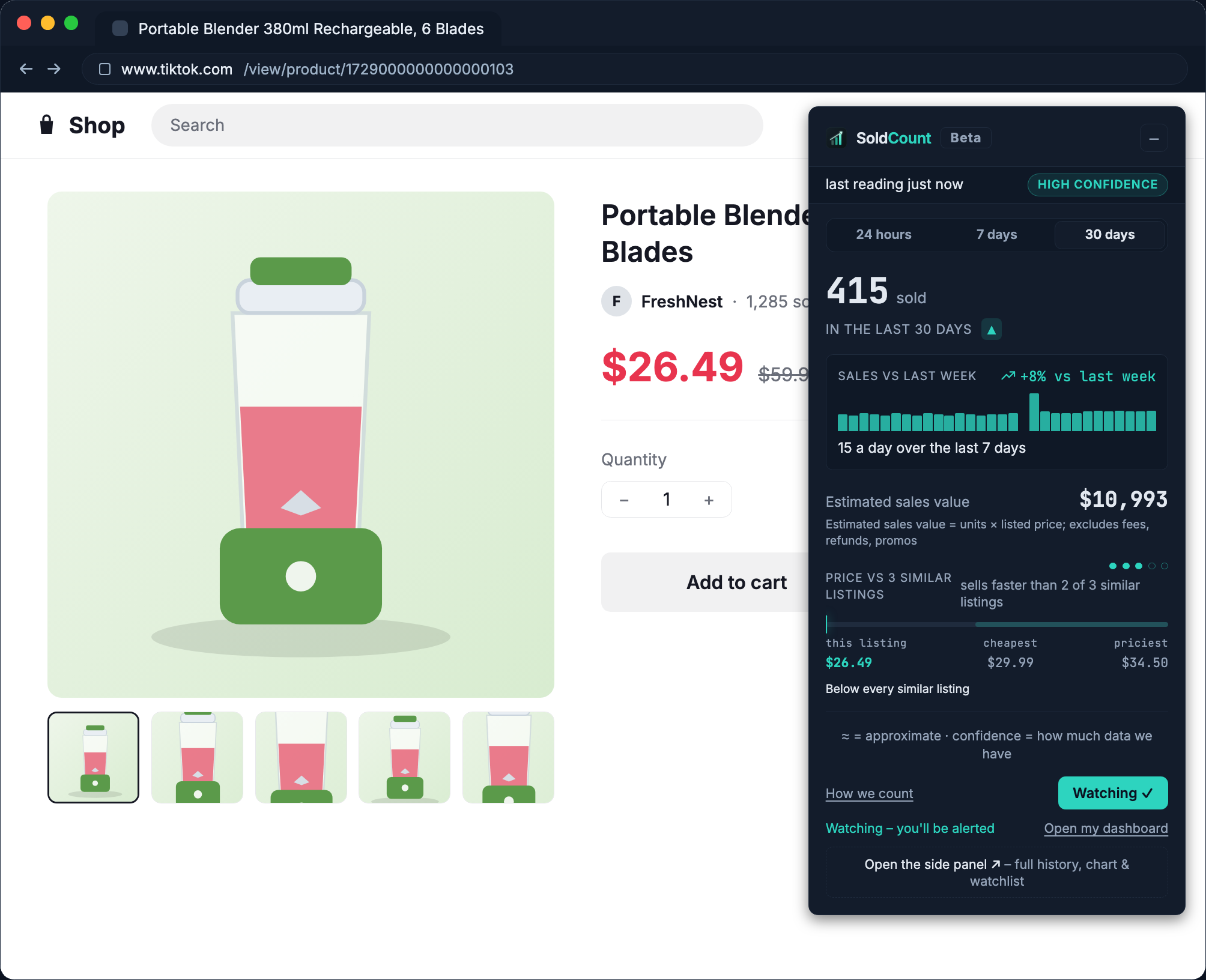
Install the SoldCount Chrome extension, open any TikTok Shop listing, and a card appears with what the listing sold in the last 30 days, whether it is selling faster or slower than last week, its daily chart, and where its price sits against the same product from other sellers. You do not have to ask it anything. It reads the same public page you are looking at, it never asks for your seller login, and it never writes to any shop.
You are on a rival's listing. It says 2.4K sold. Sold since when? Sold this week, or sold once in March? The page will not tell you, and neither will Seller Center, because Seller Center only knows about your own shop.
The SoldCount TikTok Shop Chrome extension puts the answer on that page.
What it shows
You already open rivals' listings. The question is what you can tell from one when you are standing on it, and the answer today is the price and a counter that has been adding up since the listing was created. Open the same page with the extension on and a card sits at the top right; sign in with a free SoldCount account and it fills in:
- Sold in the last 30 days, with how sure SoldCount is about it and when the last reading was.
- Selling faster or slower vs last week, as a real percentage with a real sign on it.
- The last 30 days, day by day, as a small chart. A day with no reading is a gap, not a zero.
- Where the price sits in the range for similar listings: cheapest, this listing, priciest.
Those four together answer the only question worth asking on a rival's page: is this listing actually taking sales off me this week, or is it a tombstone with a big number on it? One tells you to price against them. The other tells you to leave them alone.
How the counting works
Nobody can tell you what a listing sold last week from a number that has been climbing since it was created. The only way to know is to have been counting, which is why SoldCount takes a reading of each watched listing about every 6 hours and counts what sold between one reading and the next.
That is the whole method, and it is worth understanding because it explains everything else the product does. TikTok publishes a cumulative sold counter on the listing page. We read it, wait, read it again, and the difference is what sold in between. Sales are the rises of that counter between our readings. When the counter drops, the listing was reset, so we count zero and start again from the new baseline rather than reporting a negative sale.
Two things follow from it, and they are why the figures on the card look the way they do.
A new listing has nothing to say yet. The first reading gives you a starting point and no sales, because a sale is a difference between two readings. The card says "day 1 of 7" rather than drawing a flat line at zero.
Some figures never arrive at all, and when one cannot, the card says so instead of drawing a bar it cannot fill. It cannot tell you how many units are left either, only how many options are still available, because a public page does not publish stock and we do not pretend to know it. Why a refused figure is the right answer.
SoldCount never asks for your seller login and never writes to any shop.
It reads the same public listing pages anyone can see. It cannot change a listing, a price or a stock level, yours or anybody else's. The full list of what it does not do.
Five things to do with it
1. Check a rival before you copy them
Open the listing that keeps appearing in your category. The card tells you whether it sells 300 a week or sold 2,400 once, eight months ago. A cumulative counter cannot tell those apart. A pair of readings can.
2. Build your comparison by browsing
Watch your listing and SoldCount looks for the same product from other sellers once a day. Open a competitor's listing while signed in and it joins straight away, if it is the same product as one you watch. There is no "add a rival" form, and there will not be one: the way to grow your comparison is a thing you already do.
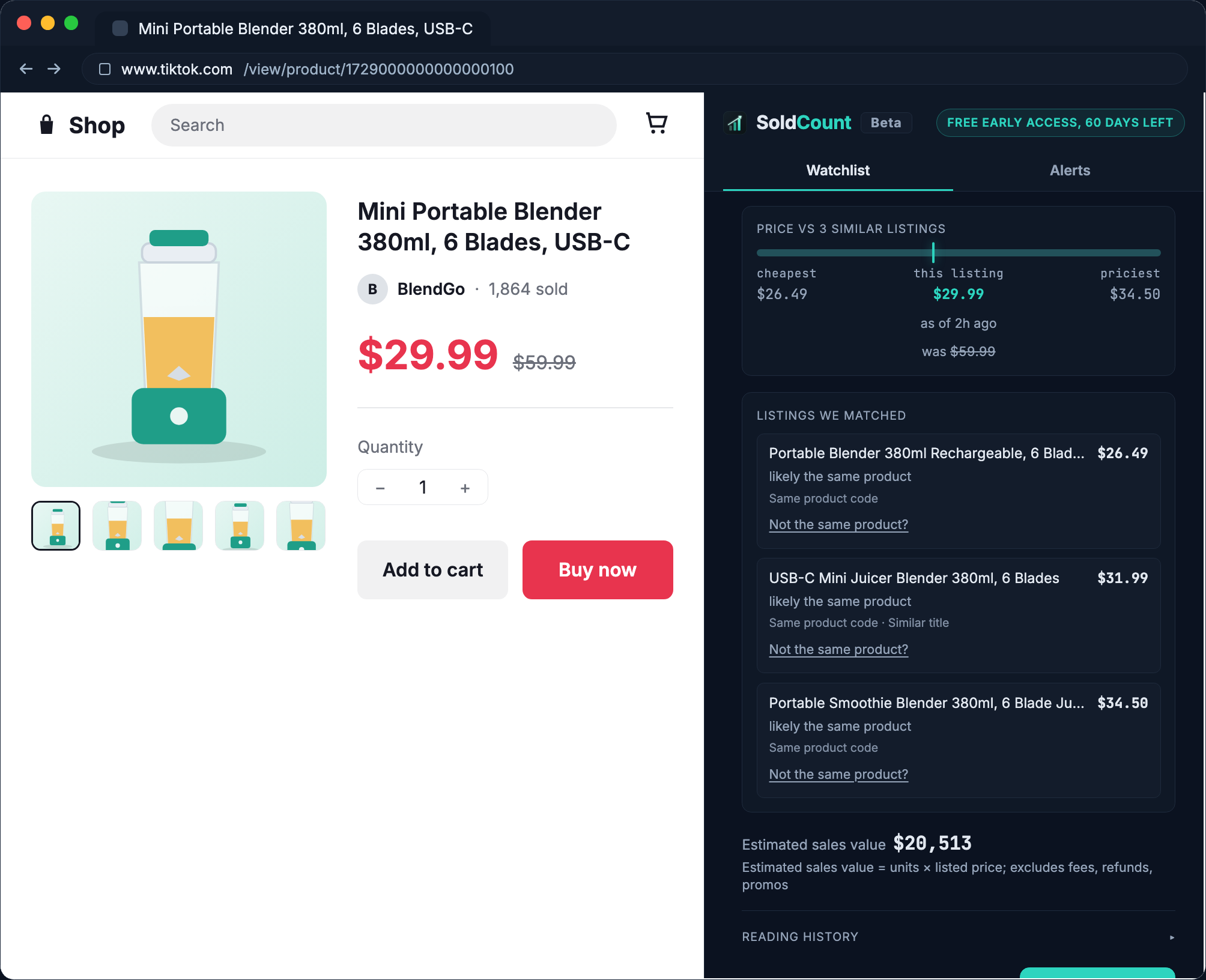
So an afternoon of browsing your category is also an afternoon of building the price range your own listing gets measured against. The rivals list under the price range shows what you have collected, cheapest first, each row with its price and why we think it is the same product.
3. Watch a listing in one press
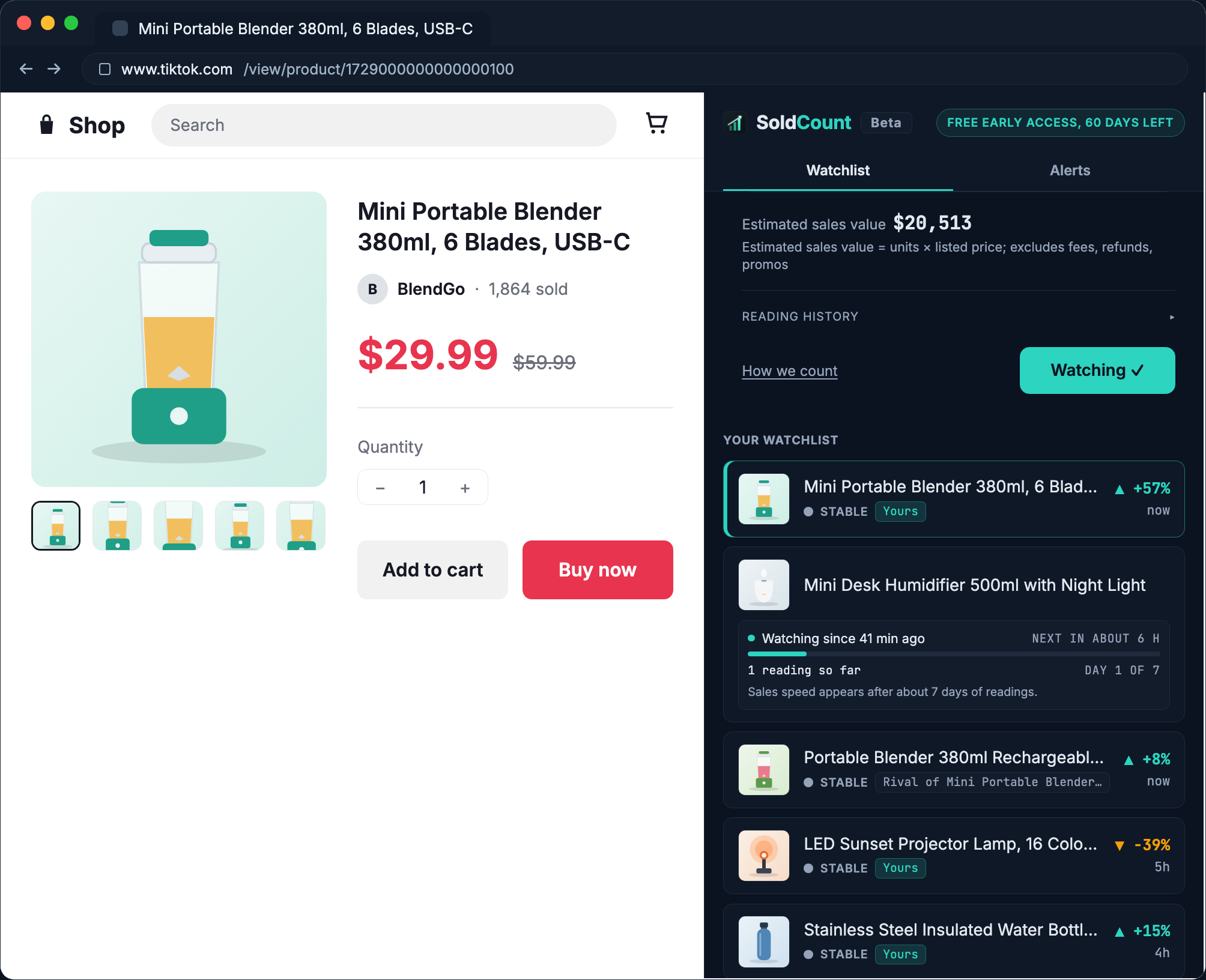
The listing you want to understand is usually one you found by accident, and the moment to start counting it is the moment you are looking at it, not when you next sit down at a dashboard. Press Watch listing on the card. It turns into Watching with a tick, and the card grows a small panel showing which reading day the listing is on, out of 7, with a bar that fills as the days accumulate. A listing nobody has read before starts at DAY 1 OF 7; one you looked at last week starts further along, because those readings already happened.
That panel is the honest part. SoldCount now reads this listing about every 6 hours and does the subtraction for you, but a listing watched a minute ago has nothing to say yet, and the card says which day it is on rather than showing a figure it does not have.
Each watch takes one of your 100 slots, so the limit is not what you can look at, it is what you keep counting: a hundred listings under constant observation is a bigger standing comparison than most sellers keep in a spreadsheet. If you press it while signed out, the press is not lost: it is replayed when you sign in within a day.
4. Keep everything in the side panel
Checking a rival should not cost you the tab you were reading. The side panel opens beside the page instead of over it, one click from the toolbar, with two tabs, Watchlist and Alerts, under a bar that stays put while the rest scrolls.
The listing you are viewing is the first block in the Watchlist tab, above the list itself, and it swaps as you browse without disturbing what is underneath. It scrolls away with everything else: the only thing that stays put is the bar at the top.
That watchlist re-reads on its own, about every 5 minutes, so a listing you have just started watching turns up there shortly rather than the instant you press the button. The card on the page is where you see it straight away.
5. Tell it when it got a match wrong
Matching is automatic, and automatic matching is sometimes wrong. A rival row that is not actually the same product carries "Not the same product?". Press it and the row goes, and the price range is redrawn without it.
The undo outlives the row. Removing it is exactly what you asked for, so the way back has to still be there after the list has already changed underneath you.
Alerts: what earns one, and where it arrives
Three things about a watched listing are worth interrupting you for, and nothing else is:
- Someone prices under a listing you watch, by more than you set.
- Out of stock, when a watched listing stops being available.
- Sales suddenly jump, against the listing's own recent history.
Those arrive as browser notifications, once you allow them. The text is composed by SoldCount and shown exactly as sent, so the alert and the app can never tell you two different things. Clicking it opens that listing in your SoldCount dashboard.
Everything smaller lands in one daily summary instead. The point of an alert level is that most changes are not news, and an alert that fires on everything is an alert you turn off.
Those levels have floors, so one cannot be set so low that everything qualifies: 10% for an undercut, 3% for a price change, 2x for a sales jump. If you would rather consume alerts as a stream in code, that is a job for your own AI assistant.
What it stores, and what it does not
Worth being exact, because this is an extension and it reads pages you are on.
- It runs on listing pages only:
www.tiktok.com/shop,www.tiktok.com/.../productandshop.tiktok.comlisting pages. It does not run on the feed, on profiles or on search. - It sends SoldCount the public listing data TikTok puts in the page you opened, and the page address: title, description, photos, price and options, the sold counter, rating, category and the seller's public shop details. That is what a reading is taken from.
- Your recent lookups are kept on your own device and are never sent to SoldCount.
- It stores your settings, your recent lookups, a pending watch from when you were signed out, and your sign-in token. Nothing for any other site.
- No remote code. Everything ships inside the package, and the extension's pages run under
script-src 'self'.
Get it
Install SoldCount from its Chrome Web Store page, then open any TikTok Shop listing. Sign up free at soldcount.com to fill the card in. Your watchlist and alerts are on the web too, and if you would rather ask questions in words than read a card, connect SoldCount to Claude.
Questions
- Does the extension need my TikTok seller login?
- No, and it never will. It reads the same public listing page any shopper sees. It cannot sign in to your shop, change a price or touch stock.
- What does it show before I sign in?
- The listing's price and a card. Sign in with a free SoldCount account and the card fills in with what sold in the last 30 days, the direction vs last week, the daily chart and the price range for similar listings.
- Does it work on every TikTok page?
- Only listing pages. It runs on www.tiktok.com/shop, www.tiktok.com/.../product and shop.tiktok.com listing pages, and nowhere else. Not the feed, not profiles, not search.
- How do I add a competitor to compare against?
- Watch your own listing and SoldCount looks for the same product from other sellers once a day. Open a competitor's listing while signed in and it joins straight away, if it is the same product as one you watch. There is no add-a-rival form and there will not be one.
- What happens when I press Watch listing?
- The button turns into Watching with a tick, and the card shows which reading day the listing is on, out of 7. SoldCount reads it about every 6 hours from then on, it takes one of your 100 slots, and the first figure arrives with the second reading, because a sale is the difference between two of them.
- Can I turn the card off?
- Yes, in the side panel under Preferences. The card disappears from every open listing tab at once. Turning it off only hides the card.